

If websites suddenly stop loading properly, pages appear outdated, or your browser feels slower than usual, the problem may not be your internet connection. In many cases, it’s simply your browser cache. Learning how to clear cache step by step is one of the easiest ways to fix common browsing issues and improve your browser’s performance.
Every modern browser stores temporary website files on your device to make future visits faster. This feature, known as browser caching, helps webpages load quickly by saving images, scripts, fonts, and other resources locally instead of downloading them every time you visit the same site. While this improves speed, cached files can eventually become outdated or corrupted, causing websites to display incorrectly or function improperly.
I’ve experienced this firsthand while managing websites. After publishing a design update, there were times when visitors could already see the new version, but my browser continued showing the old layout. A quick cache clear immediately loaded the latest files, saving me from spending time troubleshooting something that wasn’t actually broken.
In this guide, you’ll learn what browser cache is, why it’s important, when you should clear it, and exactly how to clear cache in Chrome, Firefox, Microsoft Edge, Safari, Opera, and mobile browsers. You’ll also discover helpful troubleshooting tips and best practices for keeping your browser running smoothly.
What Is Browser Cache?
Browser cache is a temporary storage area where your web browser saves files from websites you visit. These files typically include:
- Images
- CSS stylesheets
- JavaScript files
- Fonts
- Videos
- HTML elements
Instead of downloading these resources every time you revisit a website, your browser loads them directly from your device. This reduces loading times, saves bandwidth, and creates a smoother browsing experience.
For example, the first time you visit an online store, your browser downloads hundreds of website resources. When you return later, most of those files are already stored locally, allowing pages to open much faster.
Without browser caching, every website would have to reload every file from the server each time you visited, resulting in noticeably slower browsing.
How Browser Cache Works
Think of browser cache as your browser’s memory.
Whenever you open a website, your browser follows a simple process:
- It requests website files from the server.
- It downloads images, scripts, stylesheets, and other resources.
- These files are stored on your device.
- The next time you visit the same website, your browser checks whether those files are still valid.
- If they haven’t changed, it loads them directly from the local cache instead of downloading them again.
This process significantly improves loading speed while reducing unnecessary network requests.
Modern browsers automatically manage cached data, but they don’t always remove outdated or damaged files. That’s why manually clearing your cache occasionally remains an important maintenance task.
Why Should You Clear Your Browser Cache?
Although caching is designed to improve browsing speed, it isn’t intended to store files forever.
Over time, websites change. They receive new designs, updated images, security improvements, and new features. If your browser continues using old cached files, you may experience problems such as:
- Broken page layouts
- Missing images
- Login issues
- Buttons that don’t respond
- Outdated website content
- Slow page loading
- Display errors
Clearing your browser cache forces the browser to download fresh files directly from the website, ensuring you’re viewing the latest version.
Common Signs It’s Time to Clear Your Cache
Not sure whether cache is causing your problem? Here are the most common warning signs:
1. Websites Look Broken
Missing buttons, distorted layouts, or misplaced text often indicate outdated cached files.
2. Website Changes Don’t Appear
If a website has recently been updated but you’re still seeing the old version, your browser is probably loading cached resources.
3. Login Problems
Cached website files sometimes conflict with updated login systems, preventing you from signing in successfully.
4. Slow Browser Performance
A browser that stores years of cached files can become less responsive over time.
5. Images or Videos Fail to Load
Corrupted cached files may prevent media from displaying correctly.
6. Website Features Stop Working
Shopping carts, search bars, forms, and menus may stop functioning if outdated JavaScript files remain stored in your cache.
Does Clearing Cache Delete Your Passwords?
One of the biggest concerns users have is losing important information.
Fortunately, clearing Cached Images and Files does not remove:
- Saved passwords
- Bookmarks
- Autofill information
- Saved payment methods
- Browser extensions
- Download history
However, if you also select Cookies, Browsing History, or Saved Passwords, those items may be deleted depending on your browser settings.
Always review the available options before clicking Clear Data.
Cache vs. Cookies
Many people think cache and cookies are the same thing, but they serve different purposes.
| Browser Cache | Cookies |
|---|---|
| Stores website resources | Stores user preferences |
| Speeds up website loading | Keeps you signed in |
| Saves images and scripts | Saves login sessions |
| Improves performance | Remembers settings |
| Safe to clear regularly | Clearing may log you out |
Knowing the difference helps you delete only the data you actually want to remove.
How Often Should You Clear Your Cache?
There’s no universal schedule, but these recommendations work well for most users.
| User | Recommended Frequency |
|---|---|
| Casual users | Every 2-3 months |
| Students | Every 1-2 months |
| Office workers | Monthly |
| Website owners | Whenever testing updates |
| Developers | Weekly or as needed |
| Heavy internet users | Every few weeks |
If your browser works normally, there’s no need to clear the cache every day.
Before Clearing Your Cache
Before you begin, take a few simple precautions:
- Save unfinished work.
- Finish file uploads.
- Close unnecessary browser tabs.
- Update your browser if needed.
- Decide whether you also want to remove cookies.
These small steps help avoid interruptions during the process.
How to Clear Cache in Google Chrome
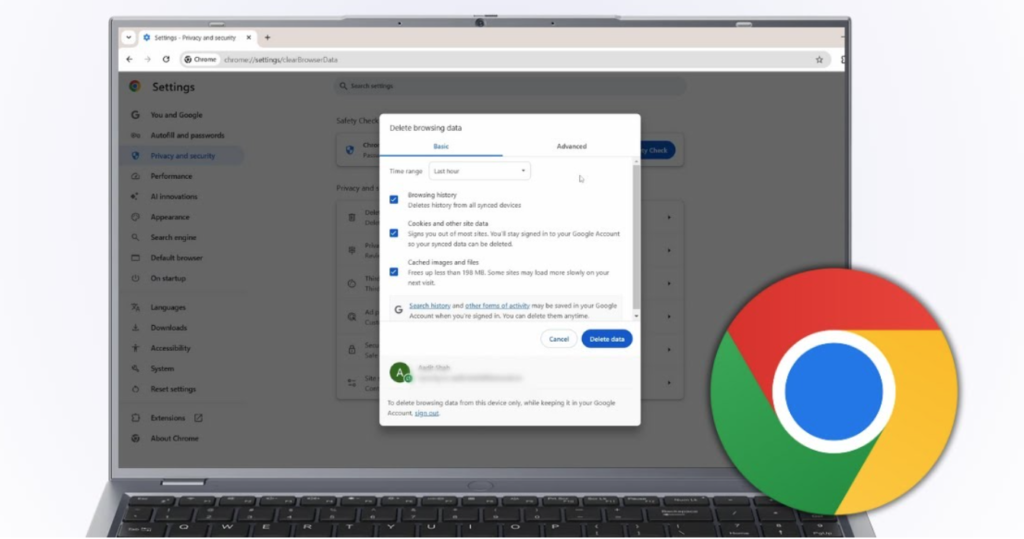
Google Chrome is the most widely used browser, and clearing its cache only takes a minute.
Using Chrome Settings
- Open Google Chrome.
- Click the three-dot menu in the upper-right corner.
- Select Settings.
- Open Privacy and Security.
- Click Delete Browsing Data.
- Choose your preferred Time Range.
- Check Cached Images and Files.
- Leave other options unchecked unless you also want to remove cookies or browsing history.
- Click Delete Data.
If you’re fixing a website problem, selecting All Time generally provides the best results.
Chrome Keyboard Shortcut
For quicker access, press:
- Windows: Ctrl + Shift + Delete
- Mac: Command + Shift + Delete
This opens the Clear Browsing Data window instantly.
Hard Refresh in Chrome
Sometimes only one webpage needs refreshing.
Instead of clearing your entire cache, perform a hard refresh:
Windows
- Ctrl + Shift + R
- Ctrl + F5
Mac
- Command + Shift + R
This forces Chrome to download fresh files only for the current webpage while keeping the rest of your cache intact.
Advanced Chrome Options
The Advanced section gives you options to remove your browsing history, cookies, download records, saved passwords, site preferences, and autofill information.
Unless you’re performing a complete browser reset, it’s usually best to clear only cached files.
How to Clear Cache in Mozilla Firefox
Mozilla Firefox gives users greater control over their browsing data than many other browsers. One of its most useful features is the ability to clear cached files without removing cookies, allowing you to stay logged into your favorite websites while fixing loading or display issues.
Clear Cache Through Firefox Settings
To clear the cache in Firefox, follow these simple steps:
- Open Mozilla Firefox.
- Click the three-line menu in the top-right corner.
- Select Settings.
- Go to Privacy & Security.
- Scroll down to Cookies and Site Data.
- Click Clear Data.
- Check Temporary Cached Files and Pages (or Cached Web Content, depending on your Firefox version).
- Keep Cookies and Site Data unchecked if you want to stay logged into your favorite websites.
- Click Clear.
Firefox removes the selected cached files immediately.
Hard Refresh in Firefox
If only one webpage isn’t updating correctly, a hard refresh may solve the problem without deleting your entire cache.
Windows
- Ctrl + Shift + R
Mac
- Command + Shift + R
Doing this prompts Firefox to fetch the most recent version of the page straight from the website’s server.
Automatically Clear Cache When Firefox Closes
You can set Firefox to automatically delete cached files each time you exit the browser.
To enable this feature:
- Open Settings.
- Navigate to Privacy & Security.
- Scroll to History.
- Select Use Custom Settings for History.
- Enable Clear History When Firefox Closes.
- Click Settings.
- Select Cache.
This feature is especially helpful when using shared or public computers to protect your privacy.
How to Clear Cache in Microsoft Edge

Microsoft Edge is built on Chromium, so its cache-clearing process is very similar to Chrome.
Step-by-Step Instructions
- Open Microsoft Edge.
- Click the three-dot menu.
- Select Settings.
- Open Privacy, Search, and Services.
- In the Clear Browsing Data menu, select the options you want to remove by clicking “Choose What to Clear.”
- Select your preferred Time Range.
- Check Cached Images and Files.
- Click Clear Now.
The browser will delete old cached files but will keep your bookmarks and saved passwords safe.
Keyboard Shortcut
For faster access, use:
- Windows: Ctrl + Shift + Delete
- Mac: Command + Shift + Delete
When Should You Use a Hard Refresh?
There are times when clearing only part of the cache is enough. A hard refresh is often enough when:
- A webpage still shows the old design.
- Images haven’t updated.
- CSS changes aren’t visible.
- You’re testing website edits.
- Only one website is experiencing problems.
Using a hard refresh saves time because it refreshes only the current page.
How to Clear Cache in Safari

Safari handles browser cache a little differently depending on whether you’re using a Mac or an iPhone.
Safari on Mac
To clear cached files:
- Open Safari.
- Click Safari in the menu bar.
- Select Settings (or Preferences on older versions).
- Open the Advanced tab.
- Enable Show Develop Menu in Menu Bar.
- Close the settings window.
- Click Develop from the menu bar.
- Select Empty Caches.
Safari clears cached website files without removing your browsing history or bookmarks.
Safari on iPhone and iPad
On iOS, cache is cleared through the Settings app.
- Open Settings.
- Tap Apps (or Safari on older iOS versions).
- Select Safari.
- Tap Clear History and Website Data.
- Confirm your selection.
Keep in mind that this option also removes cookies and browsing history, so you’ll likely need to sign back into websites afterward.
How to Clear Cache in Opera

Opera is also based on Chromium, making its settings almost identical to Chrome.
Clear Cache in Opera
- Open Opera.
- Click the Opera Menu.
- Select Settings.
- Open Privacy & Security.
- Click Clear Browsing Data.
- Select Cached Images and Files.
- Choose your preferred time range.
- Click Clear Data.
Keyboard Shortcut
- Windows: Ctrl + Shift + Delete
- Mac: Command + Shift + Delete
How to Clear Cache on Mobile Browsers
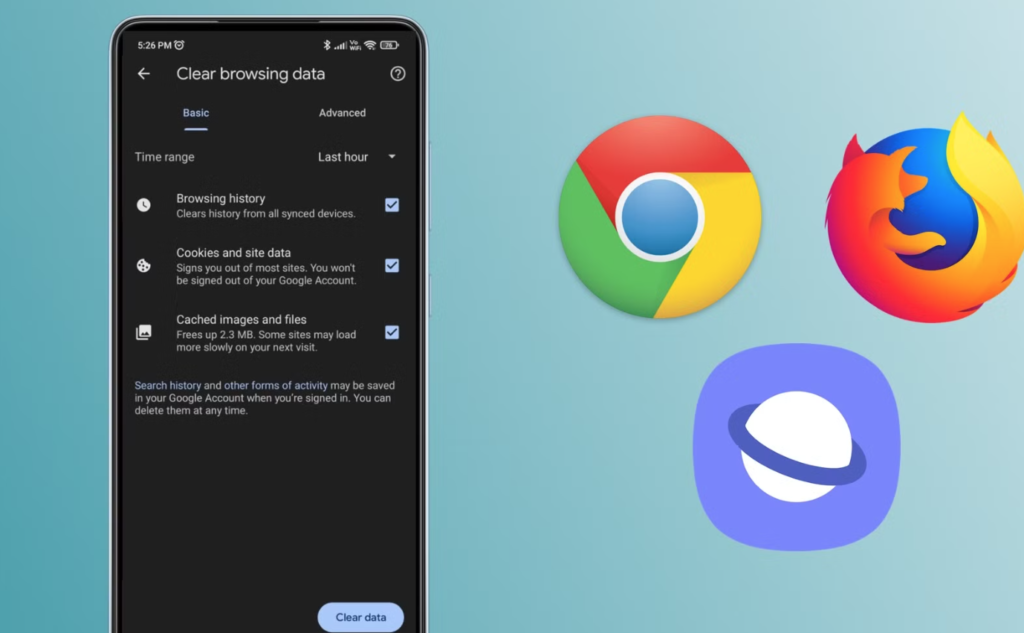
Mobile devices save cached website data too, which can take up storage or cause websites to show outdated content over time.
Chrome for Android
- Open Chrome.
- Tap the three-dot menu.
- Select History.
- Tap Clear Browsing Data.
- Choose a Time Range.
- Check Cached Images and Files.
- Tap Clear Data.
Firefox for Android
- Open Firefox.
- Tap the menu icon.
- Open Settings.
- Select Delete Browsing Data.
- Check Cached Images and Files.
- Tap Delete Browsing Data.
Samsung Internet
If you use Samsung Internet:
- Open Samsung Internet.
- Tap Menu.
- Open Settings.
- Select Personal Browsing Data.
- Tap Delete Browsing Data.
- Choose Cached Images and Files.
- Tap Delete.
What Happens After You Clear Cache?
After clearing your browser cache, several things happen immediately:
- Your browser downloads fresh website files.
- Recently updated websites display correctly.
- Corrupted cache files are removed.
- Some storage space is recovered.
- Website loading errors may disappear.
The first visit to a website may take slightly longer because your browser needs to download fresh resources. After that, pages usually load at normal speed again.
Tips to Keep Your Browser Running Smoothly
Clearing cache is only one part of browser maintenance. To keep your browser performing at its best:
- Keep your browser updated to the latest version.
- Remove extensions you no longer use.
- Restart your browser regularly.
- Try not to leave numerous tabs open for extended periods of time.
- Restart your computer occasionally to free up system memory.
Adopting these easy habits can enhance your browsing speed and help prevent common problems.
What If Clearing Cache Doesn’t Fix the Problem?
If you’re still having trouble after clearing cached files, try these additional steps:
- Check your internet connection.
- Disable browser extensions one at a time.
- Update your browser.
- Consider viewing the website in Incognito or Private browsing mode instead.
- Flush your computer’s DNS cache.
- Test the website in another browser.
If the issue occurs in every browser, the problem is likely with the website or your internet connection rather than your browser cache.
Conclusion
Learning how to clear cache step by step is a simple skill that can solve many common browser problems. Whether you’re using Chrome, Firefox, Microsoft Edge, Safari, Opera, or a mobile browser, clearing outdated cached files helps ensure websites load correctly, display the latest content, and perform as expected.
For most users, clearing the cache every two or three months is enough to maintain smooth browsing. If you manage websites, work in web development, or frequently troubleshoot online issues, you may need to do it more often. Pair regular cache clearing with browser updates, extension management, and occasional hard refreshes to keep your browsing experience fast, secure, and reliable.
The next time a website refuses to load properly or continues showing outdated content, you’ll know exactly what to do. A quick cache clear could be all it takes to get everything working again.
- Read more about Newstwick
Frequently Asked Questions
1. Does clearing browser cache delete my passwords?
No. Clearing only Cached Images and Files does not delete your saved passwords, bookmarks, or autofill information. However, if you also choose to delete cookies or saved passwords, you may be signed out of websites or lose stored login credentials.
2. How frequently should you clear your browser’s cache?
For most users, clearing the browser cache every two to three months is sufficient. If you’re a web developer, website owner, or frequently experience loading issues, you may benefit from clearing it more often.
3. Why do websites load slowly after clearing the cache?
This is completely normal. After clearing the cache, your browser needs to download fresh website files again. Once those files are stored locally, websites will typically load at their normal speed on future visits.
4. Can clearing cache fix websites that aren’t loading correctly?
Yes. Clearing your browser cache often resolves issues such as outdated pages, broken layouts, missing images, login errors, and websites that fail to display recent updates. If the problem continues, check your internet connection, browser extensions, or try another browser.
5. What’s the difference between clearing cache and clearing cookies?
Browser cache stores temporary website files like images, stylesheets, and scripts to improve loading speed. Cookies store information such as login sessions and website preferences. Clearing the cache refreshes website files, while clearing cookies usually signs you out of websites and resets your saved preferences.