

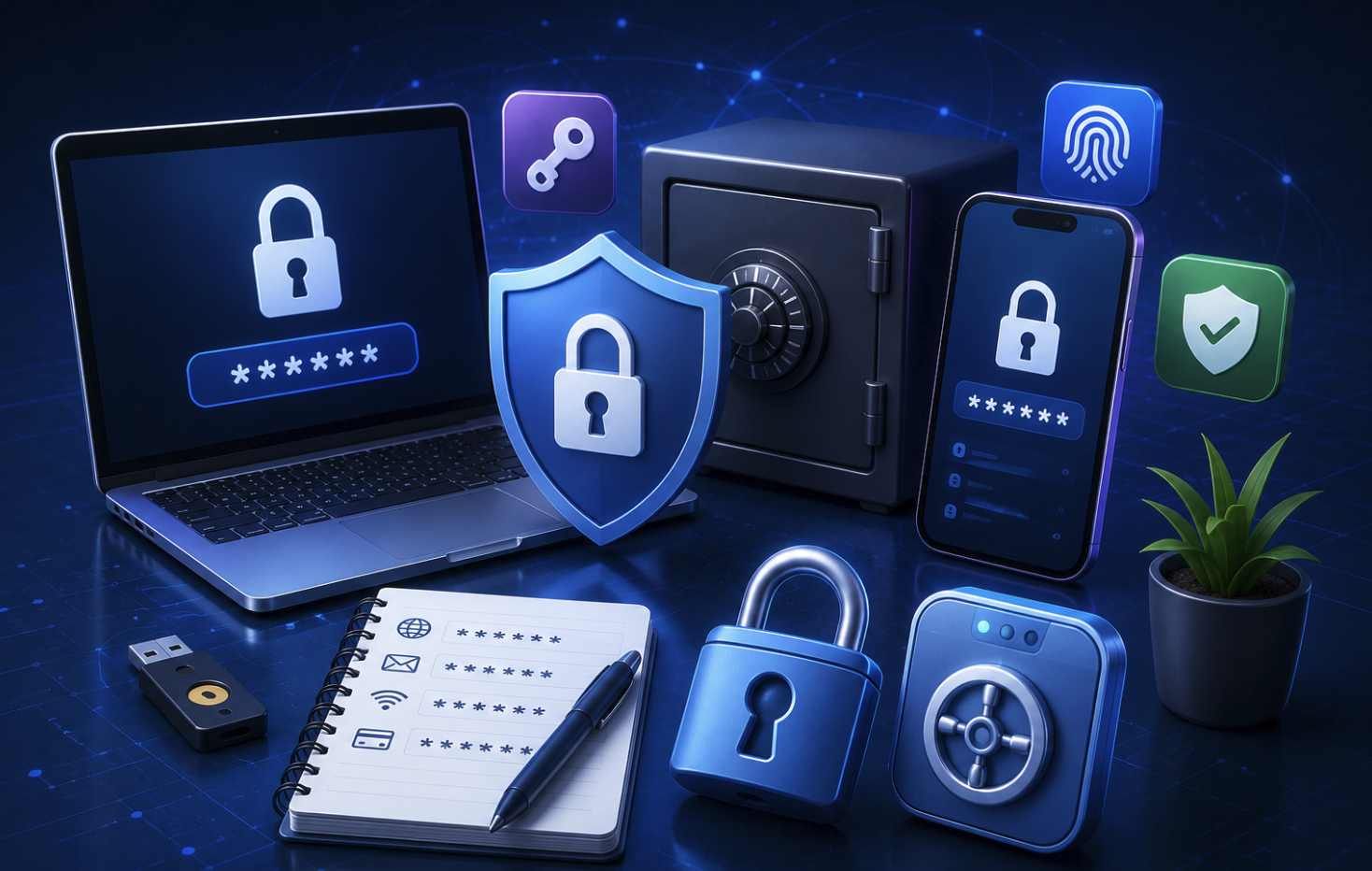
Most people know they should use different passwords for every account. Most people also know they don’t actually do that, because remembering twenty complex passwords across banking, email, and streaming accounts is genuinely impossible without help.
That’s exactly what password managers solve. They generate strong, unique passwords for every site, store them securely, and fill them in automatically, so you only ever need to remember one master password. And several excellent options do all of this for free.
Here’s a clear look at the best free password managers in 2026, what each does well, and where the free tier runs out.
What to Look For Before Choosing
The most important factors: end-to-end encryption (so even the provider can’t read your passwords), zero-knowledge architecture, strong master password protection, and multi-device sync if you use more than one device. Secondary features like password health checks and breach monitoring are genuinely useful additions.
The main trade-off with free tiers is almost always device limits or capped storage. Knowing which limitation you can live with narrows the choice quickly.
1. Bitwarden – Best Overall
Bitwarden is the clear standout and it isn’t particularly close. It’s open source, independently audited, and the free tier is remarkably generous, unlimited password storage, sync across unlimited devices, and all core features. Most free competitors charge or limit exactly those things.
It generates strong passwords, stores secure notes and card information, supports two-factor authentication, and works across Windows, Mac, Linux, iOS, Android, and all major browsers. Because it’s open source, the code is publicly reviewable, anyone can inspect how it handles data, which is a meaningful advantage for security-minded users.
- Best for: Almost everyone. The free tier is complete for most users.
- Limitation: Advanced features like encrypted file attachments and priority support require a paid plan ($10/year, one of the cheapest upgrades available).
2. NordPass Free – Best for Simplicity
NordPass brings a clean, beginner-friendly interface that makes getting started easy. The free tier includes unlimited password storage and a password health checker that flags weak, reused, or compromised passwords.
The limitation is significant: the free plan only allows one active device at a time. Switch from laptop to phone and you’ll be logged out of the other. For single-device users, manageable. For anyone moving between devices regularly, it becomes frustrating fast.
- Best for: Single-device users who want a polished, intuitive experience.
- Limitation: One active device at a time on the free plan.
3. KeePass – Best for Privacy-First Users
KeePass takes a fundamentally different approach. It stores your password database locally on your device rather than on any server. Nothing is transmitted over the internet by default, your passwords never leave your machine unless you manually sync the database file through a service like Dropbox.
This makes it the strongest option for users who don’t want to trust any third party with their password data. The trade-off is usability, KeePass is functional but the interface is dated, and browser integration requires additional plugins rather than working out of the box.
- Best for: Privacy-focused and technical users who want full local control.
- Limitation: No built-in sync, older interface, more manual setup than modern alternatives.
4. Proton Pass Free – Best for Privacy Ecosystem Users
Proton Pass comes from the company behind ProtonMail and ProtonVPN, well-known for privacy-focused products based in Switzerland. The free tier includes unlimited passwords, end-to-end encryption, and a genuinely unique feature: built-in email alias generation.
Email aliases let you create a unique address for each site you sign up to, so your real email stays private. You can simply delete an alias if it starts receiving spam. For users already in the Proton ecosystem, this integrates naturally. For everyone else, it’s still a solid, privacy-first option with a clean interface.
- Best for: Privacy-conscious users and existing Proton users.
- Limitation: Vault sharing and some advanced 2FA options are behind the paid plan.
5. Dashlane Free – Best for Breach Monitoring
Dashlane’s free tier has tightened considerably, it’s now limited to one device and 25 stored passwords. That makes it hard to recommend as a long-term solution. However, it includes real-time dark web breach monitoring that alerts you when your email appears in known data breaches. For a user who specifically wants that feature without paying, it’s worth knowing about.
- Best for: Users who want breach monitoring on a single device.
- Limitation: 25 password cap and one device, very restrictive for regular use.
Quick Comparison
| Password Manager | Unlimited Passwords | Multi-Device Sync | Open Source | Notable Free Feature |
|---|---|---|---|---|
| Bitwarden | Yes | Yes | Yes | Full features, unlimited sync |
| NordPass | Yes | No (1 active) | No | Password health checker |
| KeePass | Yes | Manual only | Yes | Full local control, no cloud |
| Proton Pass | Yes | Yes | Yes | Email alias generation |
| Dashlane | No (25 max) | No (1 device) | No | Dark web breach monitoring |
Which One Should You Choose?
For most users, Bitwarden is the right answer, the free tier is complete, works across all devices, is open source, and independently audited. There’s very little reason to choose a more restricted free option when Bitwarden exists.
If you don’t want cloud storage for passwords, KeePass gives full local control at the cost of a less modern experience. If you’re already using Proton services, Proton Pass integrates cleanly and the email alias feature is a genuine bonus. If you need something polished on a single device, NordPass works well. Dashlane’s free tier is too limited in 2026 for most people unless breach monitoring is specifically the priority.
A Few Things Worth Knowing First
The master password you choose matters enormously. Use a long, memorable passphrase, not a word and don’t reuse it anywhere. This is the one password no manager protects for you.
Enable two-factor authentication on your password manager account wherever the free tier allows it. And be cautious about browser-built-in managers like Chrome’s or Safari’s, they’re convenient, but tied to a single account that becomes a single point of failure if compromised. A dedicated password manager with end-to-end encryption is a meaningfully stronger choice.
- Also Discover About:
“How Google Password Manager keeps your passwords secure and autofill effortless?”
Frequently Asked Questions
1. Is it safe to store all passwords in one place?
Yes, if the manager uses end-to-end encryption and you protect it with a strong master password and two-factor authentication. Reusing weak passwords across sites is a far higher risk.
2. What happens if I forget my master password?
Most managers cannot recover it due to zero-knowledge encryption, they genuinely don’t have access. Keep a physical backup of your master password somewhere secure.
3. Can free password managers be trusted?
The established ones on this list, yes. Bitwarden and KeePass are open source with public security audits. The risk comes from obscure, unverified tools, not from well-established, transparent options.
4. Is it advisable to switch from my browser’s built-in password manager?
For most users, yes. Dedicated managers offer stronger encryption, work across browsers and devices, include security features like breach alerts, and aren’t tied to a single platform account.
5. Do password managers work on all devices?
Cloud-based options like Bitwarden and Proton Pass work across Windows, Mac, iOS, Android, and major browsers. KeePass is primarily desktop-focused but has community-maintained mobile versions.