
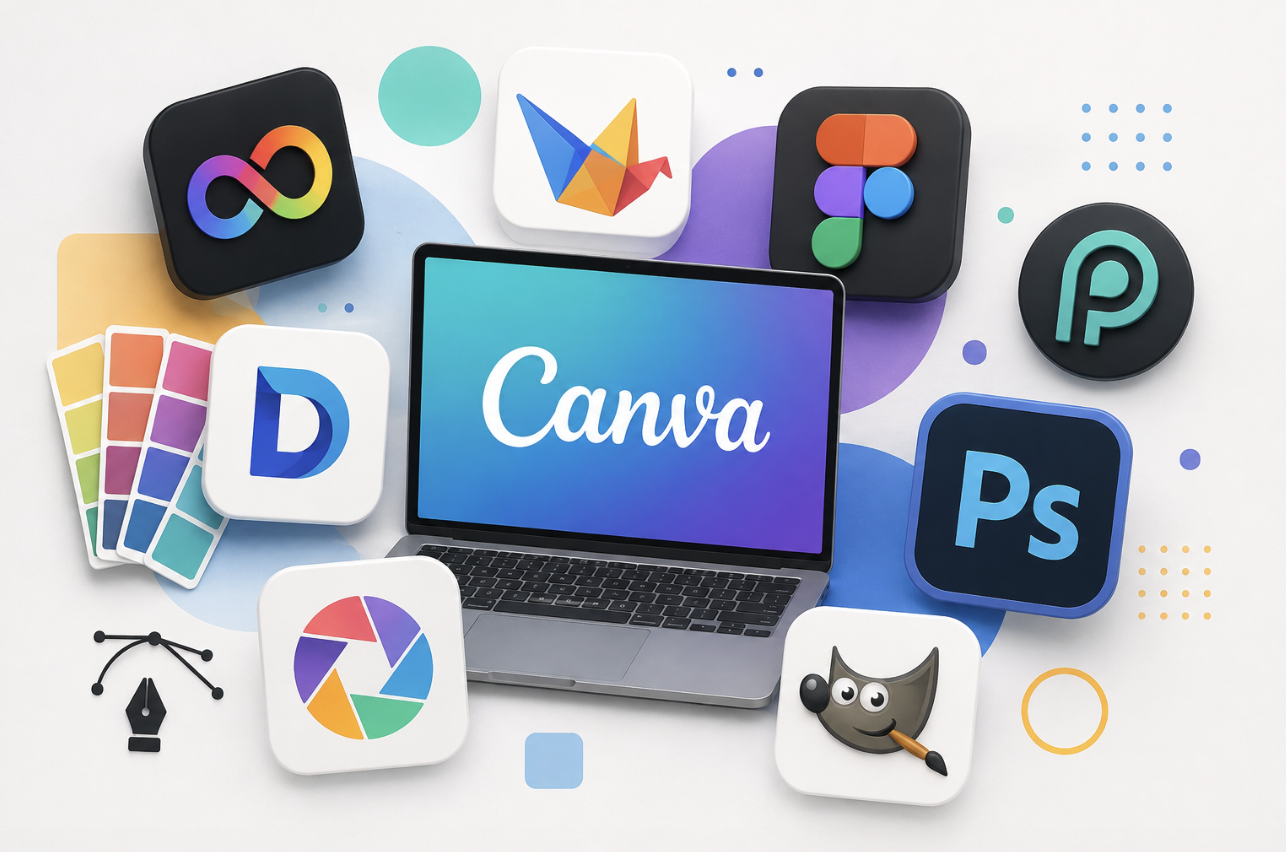
Looking for powerful and budget-friendly options to create stunning graphics without relying on Canva? Whether you’re a beginner or a seasoned designer, there are plenty of free alternatives that offer a wide range of tools and features to bring your creative ideas to life.
In this article, we’ll explore some of the best free Canva alternatives for graphic design, helping you find the perfect platform to craft eye-catching visuals without any cost.
Why Look for Canva Alternatives?
Canva has become a popular choice for creating social media graphics, presentations, posters, thumbnails, flyers, and other visual content. However, it isn’t necessarily the perfect tool for everyone.
You might want more advanced photo editing, greater control over layouts, better collaboration features, or simply another free option.
The good news is that you have plenty of choices in 2026. Some alternatives are designed to feel similar to Canva, while others take a completely different approach.
For example, Adobe Express focuses on quick content creation, Figma provides more precise design and collaboration features, and Photopea offers a Photoshop-like editing experience directly in your browser.
So, which one should you choose?
That depends on what you want to create.
What Should You Look for in a Free Canva Alternative?
Before choosing a design platform, consider what you actually need.
A good free Canva alternative should ideally provide:
- Useful templates
- Easy-to-use editing tools
- Multiple export formats
- Social media design sizes
- Photo editing features
- Typography controls
- Image and graphic resources
- Collaboration features where needed
- A genuinely useful free plan
However, remember that free doesn’t always mean unlimited.
Some platforms offer free tiers with restrictions on templates, storage, AI features, downloads, stock assets, or advanced tools. Others, such as open-source applications, can be completely free but may require more time to learn.
1. Adobe Express: Best Overall Canva Alternative
Best for: Social media graphics, marketing content, quick designs, and Adobe users
Adobe Express is one of the closest alternatives to Canva if you want a simple, browser-based design experience.
You can use it for social media posts, flyers, presentations, videos, documents, and other marketing materials. Its free tier includes a range of templates, basic editing tools, storage, and access to selected Adobe Stock content.
Another advantage is its connection to Adobe’s broader creative ecosystem.
If you already use Adobe products, moving between tools can make your workflow more convenient.
Why Choose Adobe Express?
- Beginner-friendly interface
- Large template collection
- Social media design tools
- Photo and video editing
- Adobe ecosystem integration
- AI-powered creative features on eligible free usage
Potential Limitation
Some advanced features and premium assets require a paid plan.
Best choice if: You want a Canva-like experience but prefer Adobe’s ecosystem.
2. VistaCreate: Best for Canva-Style Templates
Best for: Social media posts, marketing graphics, animations, and quick designs
If what you like most about Canva is its template-driven workflow, VistaCreate is worth considering.
The platform is designed around ready-made templates and visual content. It can be particularly useful for social media graphics, promotional materials, advertisements, and animated designs.
Recent comparisons of free design tools consistently identify VistaCreate as one of the closest Canva-style alternatives, although its overall ecosystem is smaller.
Why Choose VistaCreate?
- Canva-like workflow
- Large selection of templates
- Social media content creation
- Animated designs
- Beginner-friendly editing
Potential Limitation
It doesn’t offer the same breadth of ecosystem and advanced design control that you may find in some other platforms.
Best choice if: You want a straightforward Canva replacement for everyday content creation.
3. Figma: Best for Professional Design and Collaboration
Best for: UI design, websites, interfaces, prototypes, and collaborative projects
Figma is different from Canva.
Rather than focusing primarily on ready-made social media templates, Figma gives you much more control over layouts, components, interfaces, and design systems.
Its free Starter option makes it accessible for individuals and small projects, although its free-plan structure and limits differ from Canva’s model.
Figma can take longer to learn, but that extra control becomes valuable when you move beyond simple graphics.
Why Choose Figma?
- Precise design controls
- Prototyping
- Components and reusable elements
- Collaboration
- Excellent for website and app design
- Useful for design systems
Potential Limitation
It isn’t the easiest choice if your only goal is creating a quick Instagram post from a template.
Best choice if: You want to develop professional design skills or collaborate on digital products.
4. Photopea: Best Free Photoshop-Style Alternative
Best for: Photo editing, layered graphics, and PSD files
Photopea is a browser-based image editor that feels much closer to Photoshop than Canva.
It supports popular file formats and is particularly useful when you need layers, masks, selections, filters, and more detailed image editing.
It can also open PSD files, which makes it useful when you’re working with Photoshop projects but don’t have access to Photoshop itself.
Why Choose Photopea?
- Runs in a web browser
- Advanced photo editing
- Layer-based workflow
- PSD support
- Useful for detailed image manipulation
- No traditional installation required
Potential Limitation
Its interface can feel overwhelming if you’re completely new to graphic design.
Best choice if: You want advanced image editing rather than a template-first design platform.
5. Pixlr: Best for Quick Online Photo Editing
Best for: Quick photo edits, social graphics, and browser-based image work
Pixlr is another convenient option if you don’t want to install desktop software.
It offers browser-based image editing tools and is useful for tasks such as resizing images, removing backgrounds, applying effects, and making quick adjustments.
Its free version is supported by advertising and includes limitations compared with paid features.
Why Choose Pixlr?
- Works in a browser
- Beginner-friendly
- Quick photo adjustments
- Useful image effects
- AI-assisted tools
- Suitable for simple social content
Best choice if: You need quick photo editing without installing a large desktop application.
6. Microsoft Designer: Best for AI-Assisted Designs
Best for: AI-assisted graphics and quick visual ideas
Microsoft Designer takes a more AI-focused approach to visual creation.
Instead of starting every project from a blank canvas, you can use AI-assisted features to help create visual concepts and layouts.
This can be useful when you know what you want to communicate but aren’t sure how to turn the idea into a finished graphic.
Free access is available, although AI usage can be subject to limits.
Why Choose Microsoft Designer?
- AI-assisted design
- Quick visual concepts
- Social media graphics
- Simple interface
- Useful for beginners
Best choice if: You want AI to help you get from an idea to an initial design quickly.
7. GIMP: Best Completely Free Desktop Editor
Best for: Advanced photo editing and users who want open-source software
GIMP takes a completely different approach.
It is a free, open-source desktop image editor available for major operating systems. It provides powerful tools for photo manipulation, compositing, and digital artwork.
Unlike Canva, you don’t depend on a large collection of online templates to create your designs.
Instead, you build your projects yourself.
Why Choose GIMP?
- Free and open source
- Advanced editing tools
- Desktop application
- Extensive customization
- No subscription required
Potential Limitation
GIMP has a steeper learning curve than Canva.
Best choice if: You want powerful desktop editing without paying for a subscription.
Canva Alternatives Compared
| Tool | Best For | Ease of Use | Free Option |
|---|---|---|---|
| Adobe Express | Social and marketing graphics | Easy | Yes |
| VistaCreate | Canva-style templates | Easy | Yes |
| Figma | UI and collaborative design | Moderate | Yes |
| Photopea | Advanced photo editing | Moderate | Yes |
| Pixlr | Quick photo editing | Easy | Yes |
| Microsoft Designer | AI-assisted designs | Easy | Yes |
| GIMP | Advanced desktop editing | Advanced | Yes |
The important point is that these tools aren’t identical. Current comparisons show that each tends to be strongest in a particular area rather than replacing Canva perfectly across every type of design work.
How to Choose the Right Canva Alternative
Choosing one tool becomes much easier when you start with your actual workflow.
For Social Media Posts
Choose Adobe Express or VistaCreate if you want templates and quick content creation.
For UI and Website Design
Choose Figma because its tools are designed around precise layouts, interfaces, prototypes, and collaboration.
For Photo Editing
Choose Photopea, Pixlr, or GIMP depending on how much control you need.
For AI-Assisted Creation
Microsoft Designer can be useful when you want AI to help generate design ideas.
For a Completely Free Desktop Tool
GIMP is a strong choice if you’re willing to spend more time learning.
Are Free Canva Alternatives Really Free?
Yes, but you need to understand the difference between free software and a free tier.
Some tools provide genuinely free or open-source software. GIMP is a good example.
Other services use a freemium model. You can use the platform without paying, but certain templates, assets, AI features, storage options, exports, or other capabilities may be restricted.
Therefore, don’t choose a platform based only on the word “free.”
Instead, ask:
Can I complete the type of designs I need without paying?
That is a much more useful question.
Free-plan limits can also change over time, so check the provider’s current terms before building your entire workflow around one service.
Final Thoughts
The best free Canva alternatives depend on what you actually want to create.
If you want the closest all-purpose experience, Adobe Express is a strong starting point. If you want Canva-style templates, VistaCreate is worth trying. For professional interface and collaborative design, Figma is the better fit.
For detailed image editing, Photopea and GIMP offer considerably more control, while Pixlr is convenient for quick browser-based edits. If you want AI assistance, Microsoft Designer is another option.
You also don’t have to choose just one.
A practical workflow might involve using one tool for templates, another for photo editing, and another for professional interface design. The right combination can give you more flexibility without requiring a paid Canva subscription.
Frequently Asked Questions
1. What is the best free alternative to Canva?
There isn’t one universal winner. Adobe Express is a strong all-purpose alternative, VistaCreate is particularly close to Canva’s template-based workflow, Figma is better for professional interface design, and Photopea is stronger for advanced image editing.
2. Is there a completely free alternative to Canva?
Yes. Open-source tools such as GIMP provide powerful design and image-editing capabilities without requiring a subscription. Browser-based Photopea also offers a free version, although its free experience is ad-supported.
3. Which Canva alternative is best for beginners?
Adobe Express and VistaCreate are among the easier options for beginners because they provide templates and relatively straightforward editing interfaces.
4. What is the best Canva alternative for photo editing?
Photopea is a strong option if you want Photoshop-style, layer-based editing in a browser. GIMP is another powerful choice if you prefer desktop software and don’t mind a steeper learning curve.
5. Is Figma better than Canva?
Neither is simply better. Canva is generally more convenient for quick template-based content, while Figma provides greater control for UI design, prototypes, design systems, and collaborative product work.
6. Can I use Canva alternatives for commercial designs?
Many platforms allow commercial use under their respective terms, but the rules differ between services, templates, stock assets, fonts, and AI-generated content. Always check the current licensing terms for the specific assets you plan to use.